
A small Discord bot runs free on Oracle Cloud’s Always Free tier, which provides a virtual machine with enough memory for 24/7 Node.js operation. Paid managed hosting starts at about $5 monthly on providers like DigitalOcean or Hetzner. Shared hosts blocking long-running processes require a VPS or app platform supporting background tasks instead.
What a Node.js host does for a bot
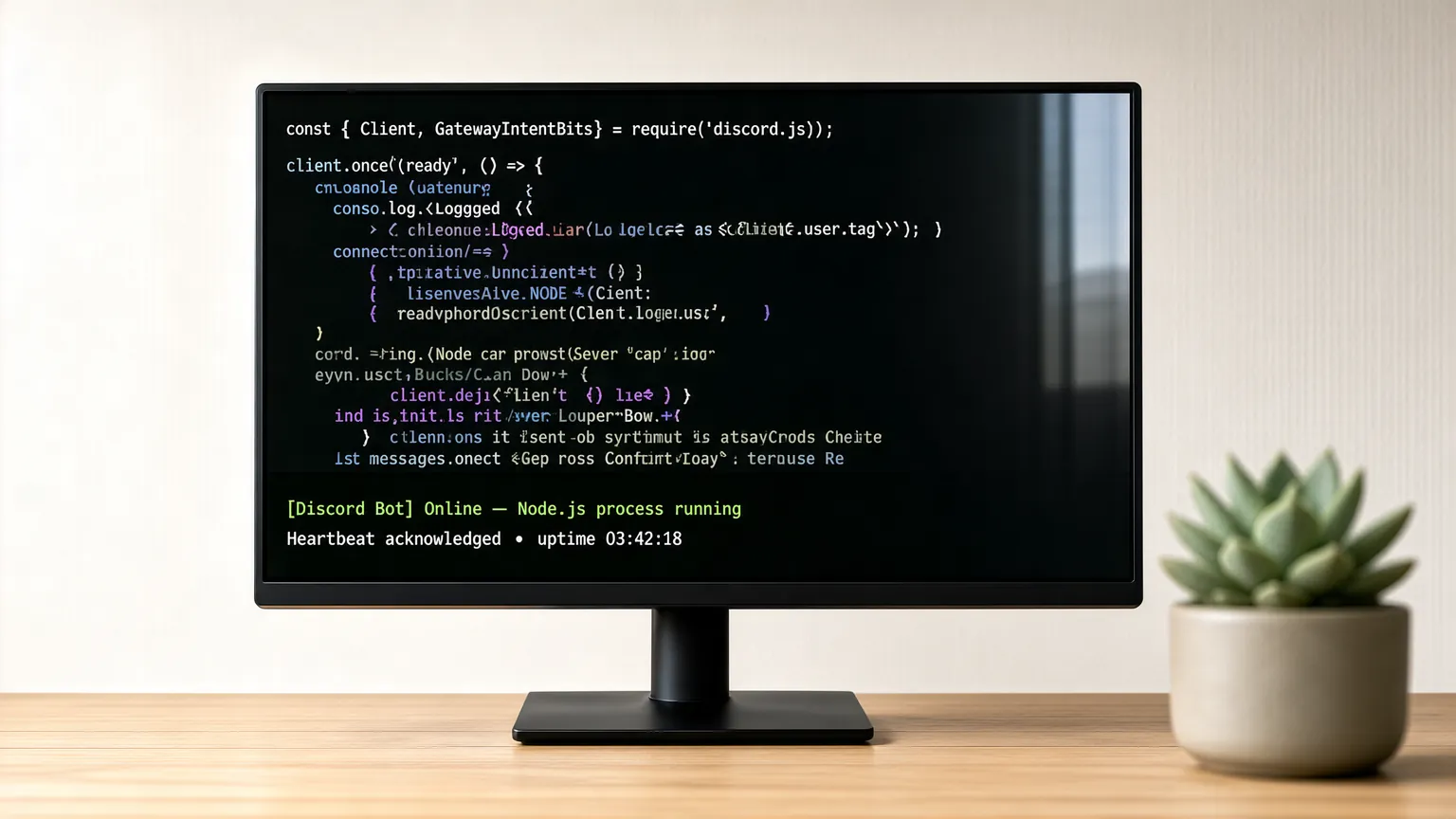
A Node.js host is just a server that keeps your JavaScript code running without stopping. For a Discord bot, that means the process stays online so it can listen for messages, react to commands, and talk to the Discord API every second of the day. You don’t get a website with buttons; you get a terminal where your script lives.
This setup is for bots written in libraries like discord.js or Eris. It isn’t for static websites or simple cron jobs that only wake up once an hour. A bot needs a persistent connection through a WebSocket, and the server has to allow that connection to stay open indefinitely.
The biggest misconception is that any web host works for this. Shared hosting plans from companies like Bluehost or HostGator usually kill background processes after a few minutes. They’re built for short web requests, not permanent connections. If your bot stops replying after ten minutes, the host is likely terminating it.
Node.js runs your code using an event loop. That loop handles incoming messages one by one without blocking other tasks, which is why a single small server can manage thousands of users. The official Node.js event loop documentation explains how this non-blocking model operates under the hood. Because of this design, a bot doesn’t need heavy hardware unless it’s doing intense image processing or database queries.
You’ll typically use Linux for these servers. Windows VPS options exist but cost more and use more memory just to run the operating system. Ubuntu 22.04 is the standard choice because most guides and package managers target it directly.
How to set up a Node.js Discord bot
Getting a bot running takes about twenty minutes once you have your server. These steps assume you’re using a basic Ubuntu VPS with root access and a bot built with discord.js version 14.
- Create your server. Sign up for a provider like DigitalOcean, Hetzner, or Oracle Cloud. Spin up a basic droplet or instance with at least 1 GB of RAM and Ubuntu 22.04 installed. Copy the IP address they give you.
- Connect via SSH. Open your computer’s terminal. Type
ssh root@YOUR_IP_ADDRESSand press Enter. Accept the security fingerprint when prompted, then enter your password. You’re now inside the server. - Install Node.js. Run
curl -fsSL https://deb.nodesource.com/setup_20.x | bash -to add the NodeSource repository. Then typeapt-get install -y nodejs. Verify it worked by typingnode -v, which should print version 20 or higher. - Set up your project folder. Type
mkdir mybot && cd mybotto create and enter a directory. Runnpm init -yto generate a package file, then typenpm install discord.jsto download the library. - Upload your code. Use a tool like SCP or SFTP (FileZilla works well) to move your
index.jsorbot.jsfile into themybotfolder on the server. Don’t paste your bot token directly into the code if others can see the repository. - Install PM2. Type
npm install -g pm2. PM2 is a process manager that restarts your bot automatically if it crashes or if the server reboots. - Start the bot. Run
pm2 start index.js --name "mybot". Your bot should now log into Discord. - Save the startup configuration. Type
pm2 saveand thenpm2 startup. Follow the command it prints on screen. This ensures your bot comes back online if the hosting company restarts your machine for maintenance.
The single judgement call that separates a stable bot from a failing one is memory management. If your bot joins over fifty servers, 512 MB of RAM isn’t enough anymore. Watch the memory usage in PM2 by typing pm2 monit. If it constantly hits 90%, upgrade to a 1 GB plan before the process gets killed by the operating system.
Bot hosting numbers and settings
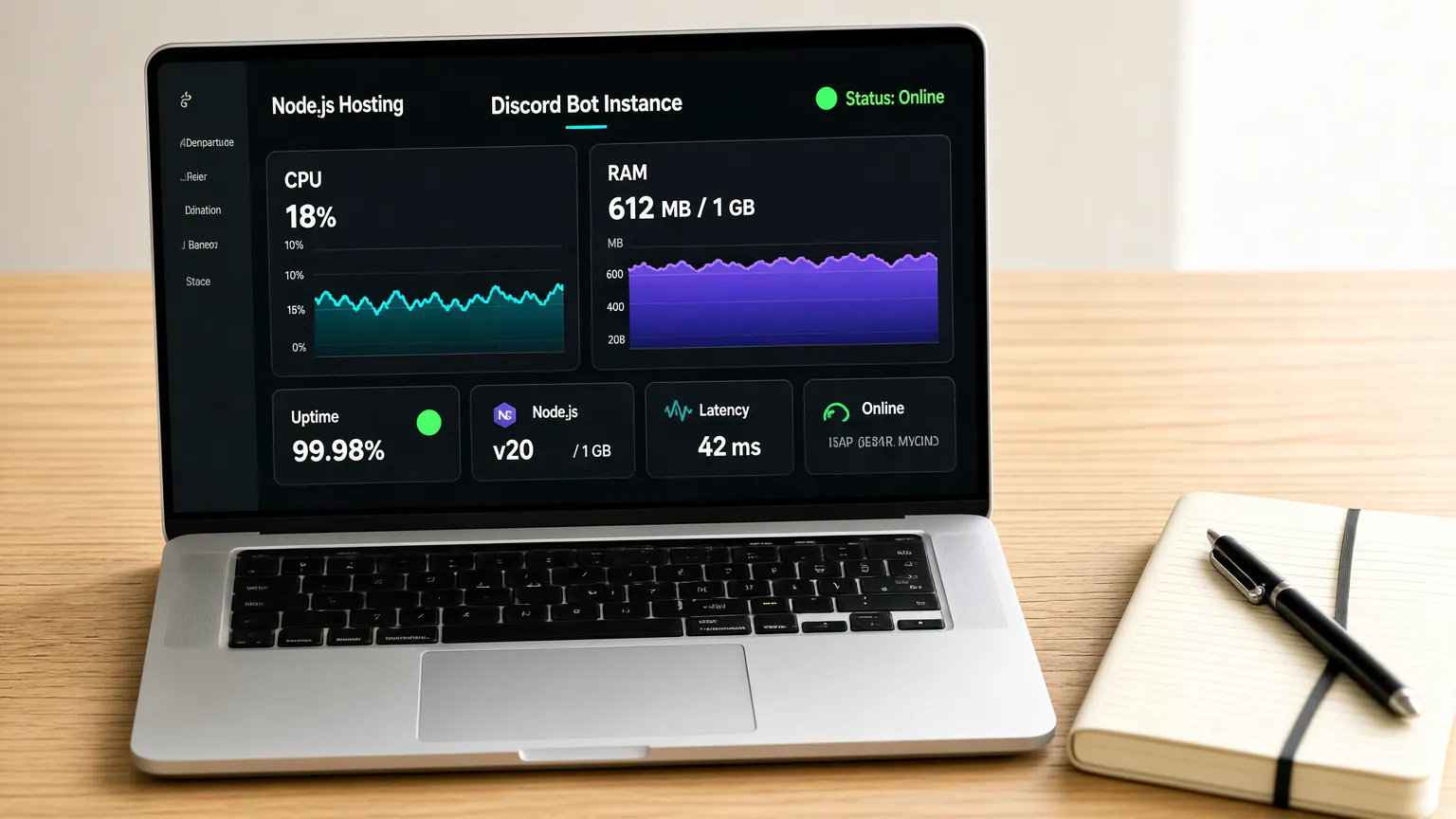
These figures apply to a standard discord.js bot handling text commands and basic moderation. Bots that process images, stream audio, or query large databases will need more resources than what’s listed here.
| Situation | What to use | How long | What to watch for |
|---|---|---|---|
| Small bot (under 10 servers) | 512 MB RAM, 1 vCPU | Setup takes 15 mins | Memory spikes during startup |
| Medium bot (10-50 servers) | 1 GB RAM, 1 vCPU | Runs continuously | Event loop lag over 50ms |
| Large bot (50+ servers) | 2 GB RAM, 2 vCPUs | Runs continuously | WebSocket disconnects |
| Audio streaming bot | 2 GB RAM, 2 vCPUs | Runs continuously | CPU hitting 100% during playback |
| Database-heavy bot | 1 GB RAM + separate DB | Setup takes 45 mins | Connection pool exhaustion |
| Free tier testing | Oracle Cloud ARM (up to 24 GB) | Setup takes 30 mins | Account verification delays |
For a small bot, a 512 MB server costs around $4 to $5 a month on platforms like DigitalOcean or Vultr. If you’re using Oracle Cloud’s Always Free tier, you can get an ARM-based instance with up to 24 GB of RAM at no cost, though provisioning sometimes fails due to capacity limits in certain regions.
Don’t forget network latency. If your users are in Europe, pick a server in Frankfurt or Amsterdam. A server in New York adds about 80 milliseconds of delay to every message your bot sends. That doesn’t sound like much, but it makes slash commands feel sluggish.
Storage rarely matters for text bots. A fresh Node.js installation and your bot files take up less than 500 MB. A 20 GB SSD is plenty unless you’re logging millions of messages to a local SQLite database.
Getting a cheap host right
The difference between a reliable bot and one that drops offline daily comes down to how you handle environment variables and process monitoring. Storing your Discord bot token directly in your JavaScript file is a mistake that costs people their entire bot.
If that file ever gets pushed to a public GitHub repository, automated scrapers will find the token in seconds, log into your bot, and use it to spam servers. Always use a .env file with the dotenv package, or pass the token through PM2’s ecosystem file.
Order matters when setting things up. Install Node.js first, then your dependencies, and upload your code last. If you upload code before running npm install discord.js, your bot will crash immediately upon starting. You’ll spend time reading error logs instead of configuring the server properly.
Check your bot’s health partway through the setup. After starting it with PM2, don’t just assume it’s working because the terminal didn’t throw an error. Type pm2 logs and look for the specific message your code prints when it successfully connects to the gateway. If you see repeated login failures, your token is wrong or your intents aren’t configured correctly in the Discord Developer Portal.
Leave the default firewall alone until your bot is running. Opening ports unnecessarily exposes your server. A Discord bot only makes outbound connections to Discord’s servers, so you don’t need to open custom inbound ports unless you’re also running a web dashboard for the bot. If you do need a dashboard, restrict port 80 and 443 to HTTP traffic using UFW.
Choosing the right operating system
Ubuntu 22.04 LTS is the safest bet because almost every Node.js tutorial targets it.
When your Discord bot stops responding
Bots fail in predictable ways. When yours goes quiet, check these symptoms against their causes before restarting anything blindly. Restarting clears the error message you need to fix the actual problem.
| What you notice | What it usually means | What to do first |
|---|---|---|
| Bot shows offline in Discord | Process crashed or ran out of memory | Run pm2 logs to read the final error |
| Bot ignores slash commands | Missing Gateway Intents in code | Check the Developer Portal settings |
| High CPU usage constantly | Infinite loop in your event handlers | Review recent code changes for missing await |
| Random disconnects every few hours | Server network instability or OOM killer | Check dmesg -T for memory termination logs |
| Can’t install npm packages | Disk space is completely full | Run df -h to check storage availability |
If pm2 logs shows a “JavaScript heap out of memory” error, your 512 MB server isn’t big enough anymore. You can temporarily increase Node’s memory limit by starting it with pm2 start index.js --node-args="--max-old-space-size=768", but buying a 1 GB server is the real fix.
Missing Gateway Intents is the most common reason new bots seem broken. Discord requires you to explicitly enable Message Content, Server Members, or Presence intents in the Developer Portal if your bot is in over 75 servers. Without them, your code simply never receives those events.
If the server itself killed the process, the Linux OOM (Out of Memory) killer stepped in. Typing dmesg -T | grep -i oom confirms this. When it happens, you must either upgrade your RAM or find the memory leak in your code.
Rules and limits for bot servers
Hosting a bot involves legal and platform rules you can’t ignore. Discord’s Terms of Service require your bot to respect rate limits. If your code spams the API with too many requests, Discord will temporarily block your bot’s access via rate limit responses. There’s no appeal process for automated rate limit bans; you just have to wait and fix your code.
Data privacy laws matter if your bot stores user information. If you operate in Europe or serve European users, the General Data Protection Regulation (GDPR) applies to you. You must provide a way for users to request the deletion of their data. The European Commission publishes the official guidelines on GDPR compliance for developers handling personal data. Ignoring this can lead to complaints that result in your bot being banned from servers.
Financial limits depend entirely on your provider. Most VPS companies bill hourly up to a monthly cap. If you leave a test server running for a week and forget about it, you’ll still be charged for those hours. Set up billing alerts in your hosting dashboard immediately after creating your account.
If your bot handles payments, donations, or premium subscriptions, you cross into financial regulations. Standard PCI-DSS rules apply to credit card processing. Don’t build your own payment flow on a $5 server. Use established APIs like Stripe, which handle the compliance burden for you. Attempting to store raw credit card data on a basic VPS violates industry standards and puts you at severe legal risk.
Keeping your bot running smoothly
Once your bot is live, the work shifts from setup to maintenance. You shouldn’t touch the server daily, but you can’t ignore it forever either.
Update Node.js when a new Long Term Support (LTS) version releases. The Node.js project typically supports an LTS version for about three years. Running an expired version means you miss critical security patches. Check the official release schedule on the Node.js website to see when your version reaches end-of-life.
Keep your dependencies current. Run npm outdated once a month to see which packages have newer versions. Don’t update everything blindly; major version bumps in discord.js often change how methods work. Read the migration guide before upgrading across major versions.
Back up your configuration. Your .env file, PM2 ecosystem config, and any local database files need to exist somewhere else. If the hosting provider suffers a hardware failure, your server might be wiped. Download these files to your local machine or push encrypted configs to a private repository.
Watch for the signs that maintenance is due. If your bot’s response time slowly increases over weeks, memory might be leaking. If PM2 shows dozens of restarts in the uptime column, something in your code is throwing unhandled errors. Address these signals before the bot goes down during peak hours.
When a cheap VPS is the wrong choice
A $5 server isn’t always the answer. Sometimes the cheapest node js hosting for discord bot ends up costing more in lost time and broken features than a purpose-built alternative.
If your bot serves over five hundred active servers, managing infrastructure yourself becomes a full-time job. At that scale, you should look at containerized deployments using Docker and Kubernetes, or use a managed platform like Railway or Render. These cost more per month but handle scaling, load balancing, and automatic restarts without you logging into a terminal.
If you don’t know how to use a Linux command line, a raw VPS will frustrate you quickly. Providers like Pterodactyl-based hosts (such as Sparked Host or PebbleHost) offer graphical panels designed specifically for game and chat bots. You upload your files through a browser and click a start button. The trade-off is that you share hardware with other users, which can cause performance dips during busy hours.
If your bot relies on heavy machine learning models or generates AI images, standard cheap hosting won’t have the GPU or RAM required. You’ll need specialized compute instances from AWS or GCP, which operate on entirely different pricing models. Trying to force a large language model onto a 1 GB VPS will just crash the server instantly.
Frequently asked questions
Can I host a Discord bot for free?
Yes, you can host a bot for free using Oracle Cloud’s Always Free tier, which offers ARM-based virtual machines with up to 24 GB of RAM. GitHub Codespaces or Replit used to work for this, but both platforms now put idle projects to sleep, making them unsuitable for bots that need to stay online constantly. You’ll still need basic Linux knowledge to configure the free server.
Why does my Node.js bot keep crashing?
Your bot is likely crashing because it ran out of memory or encountered an unhandled promise rejection. A 512 MB server fills up fast if your bot caches lots of messages or users. Check your error logs using pm2 logs to find the exact line of code causing the failure. Adding proper error handling to asynchronous functions prevents most sudden crashes.
How much RAM does a Discord bot need?
A basic text bot in fewer than ten servers needs about 256 MB to 512 MB of RAM to run safely. If your bot joins over fifty servers or uses voice features, you’ll need at least 1 GB. The exact amount depends on how much data your code stores in memory versus writing to a database.
Is it safe to use cheap hosting for a bot?
Yes, cheap hosting is safe as long as you secure the server yourself. A $5 VPS from a reputable company uses the same physical hardware as expensive plans. The risk comes from leaving default passwords enabled or exposing unnecessary ports. Change your SSH keys, set up a basic firewall, and never share your Discord token publicly.
How long does it take to deploy a bot?
Deploying a bot to a fresh VPS takes about 15 to 20 minutes if you already have your code written and tested locally. This assumes you’re familiar with SSH and basic Linux commands. If you’re learning the terminal for the first time, expect the initial setup to take closer to an hour while you troubleshoot permissions.
What happens if my hosting bill isn’t paid?
If your payment fails, most VPS providers will suspend your server within a few days. During suspension, your bot goes offline but your files remain intact. If the bill stays unpaid for 30 days, companies like DigitalOcean or Hetzner will permanently destroy the server and delete all data. Set up auto-pay to prevent accidental deletions.
Conclusion
Picking a host comes down to your comfort level with servers and your bot’s size. Start with the smallest VPS you can find, monitor the memory usage for a week, and only upgrade when the numbers tell you to. Don’t pay for power your code hasn’t earned yet.
