
Dawn, Refresh, Craft, Sense, Taste, Studio, and Publisher are the strongest options on Shopify’s own free theme list, and they cover almost every kind of store a beginner opens. These are all built by Shopify itself, so they install straight from your admin panel with no coding and no monthly fee. What they share is speed, mobile-friendly layouts, and free updates.
The one thing that separates them is section layout — each theme arranges your homepage blocks in a different order, and that choice decides how fast a shopper finds your products.
If you sell fewer than about ten products, start with Dawn. Its homepage pushes a single featured collection to the top, so a small catalog gets seen without scrolling.
If you sell thirty or more, or you run several categories, look at Refresh or Craft instead. Both give you room for multiple collection blocks above the fold, which stops one category from burying the rest.
Sense and Taste suit beauty, food, and wellness stores, where large imagery does more selling than a dense product grid. Studio fits photo-heavy and creative work. Publisher is the one to pick if your store is mostly content — a blog, recipes, or guides — with a small shop attached.
Skip the paid-theme upsell in your first month. A free theme with a clear homepage beats a paid theme you haven’t set up yet.
Free Shopify themes at a glance
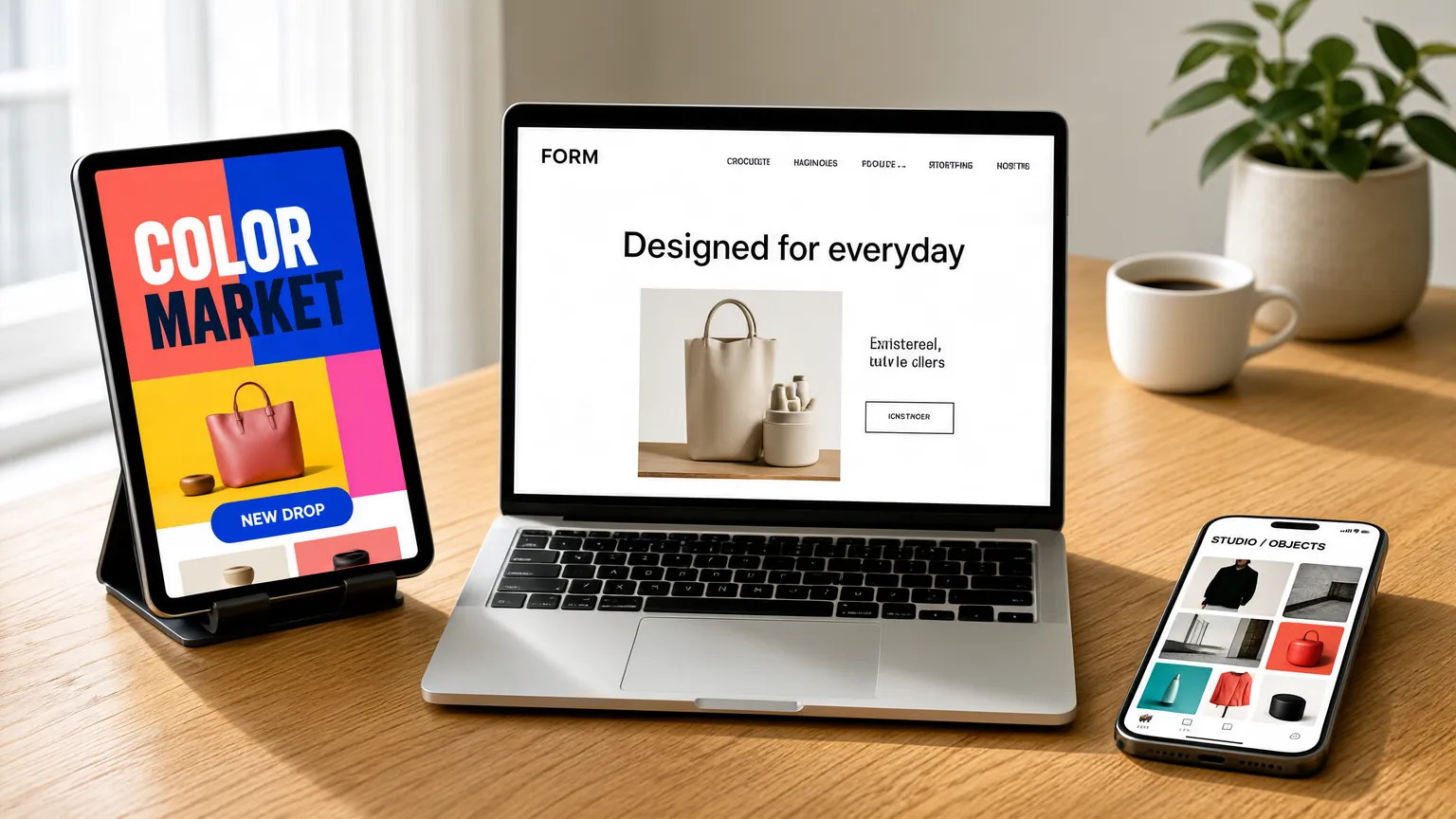
| Theme name | Best for | Example use |
|—|—|—|—|
| Dawn | Fast, simple stores | One-product shops |
| Refresh | Bold, colorful brands | Streetwear and beauty |
| Craft | Makers and handmade goods | Ceramics and candles |
| Sense | Health and wellness | Supplements and skincare |
| Taste | Food and drink sellers | Coffee and spice shops |
| Studio | Creative portfolios | Artists and photographers |
| Publisher | Blogs and content | Recipe and news sites |
All seven are free and built by Shopify itself, so none of them will be abandoned or start charging you later. That matters more than any feature list.
Pick by what you sell, not by which demo looks prettiest. Dawn suits a store with few products and a single goal: get the item into the cart. Refresh and Sense carry more color and larger imagery, which helps when the product is the brand.
If you sell physical goods you make by hand, Craft gives your photos room. Taste is tuned for consumables, where ingredients and origin do the selling. Studio drops commerce into the background and lets images lead, which is what a photographer needs. Publisher is for words first, with a shop attached.
You can switch themes later without losing products, orders or customers.
Dawn: the fastest free theme
Dawn is Shopify’s default theme, and it’s the one Shopify builds its own speed benchmarks around. It suits a store with a small catalog — under about 50 products — where each product page has to load fast on a phone. Dawn keeps its layout plain on purpose, so images and text do the work instead of animations. If you sell one hero product or a tight collection, start here.
- Loads quickly on mobile connections, which matters because most shoppers browse on a phone
- Handles large product images without breaking the layout
- Supports quick-add buttons so buyers skip the product page
- Works with Shopify’s built-in filters and search with no extra apps
Dawn’s limit is visual. It looks like a template, and two Dawn stores side by side can feel similar. You fix that with your own photos, fonts, and colors, not with the theme settings. A reader who wants a loud, magazine-style homepage should look at Refresh instead.
For a real example, a shop selling one handmade leather wallet can set the homepage to a single featured-product section, add a short text block above it, and leave the rest of the sections switched off. That gives a buyer one clear path: see the wallet, read three lines, tap add to cart. If you keep more than 50 products, Dawn still works, but you’ll want the collection page filters turned on so people can narrow the list themselves.
Refresh: bold color and big type
Refresh does something Dawn doesn’t: it puts large, colored banners and oversized headings at the top of the page. That makes it a fit for brands with a strong visual identity — streetwear, cosmetics, energy drinks — where the look is part of the sale. It suits a store that already has good product photography, because Refresh makes every image bigger.
- Displays wide banner images that fill the screen on mobile
- Handles bright color blocks without looking broken
- Gives sale and announcement bars a natural place at the top
- Keeps text readable over busy photos with built-in overlay settings
Refresh runs slightly heavier than Dawn because of those large images. If your photos aren’t compressed, the page slows down. Check your image file sizes before you blame the theme — Shopify’s own guidance on image sizes is in your admin under each file’s details.
A concrete use: a skincare brand puts a full-width photo of its serum bottle at the top, a two-line headline over it, and a shop-now button. Below that, three color blocks each link to one product. That’s a homepage a shopper understands in about five seconds.
Craft: built for makers and handmade goods
Craft is designed for stores that sell things made by hand — ceramics, candles, jewelry, small-batch goods. It gives more room to story and process than Dawn does, which matters when the buyer is paying for the maker’s time as much as the object. It suits a seller with 10 to 100 products and photos of the work in progress.
- Shows maker stories and process photos without crowding the product
- Handles irregular product shapes, like bowls and woven items
- Supports collection pages that feel like a gallery
- Gives each product room for a longer description
Craft’s real limit is that it rewards good photography and punishes bad photography. A phone shot on a cluttered table looks worse here than on Dawn. If you can’t shoot clean photos yet, Dawn hides that better.
One example: a potter lists 30 mugs, each with a photo of the finished piece plus one of it on the wheel. The product page carries four lines on the glaze and firing method. That extra context is what separates a $40 mug from a $12 one, and Craft gives it space.
Sense: health, wellness, and supplements
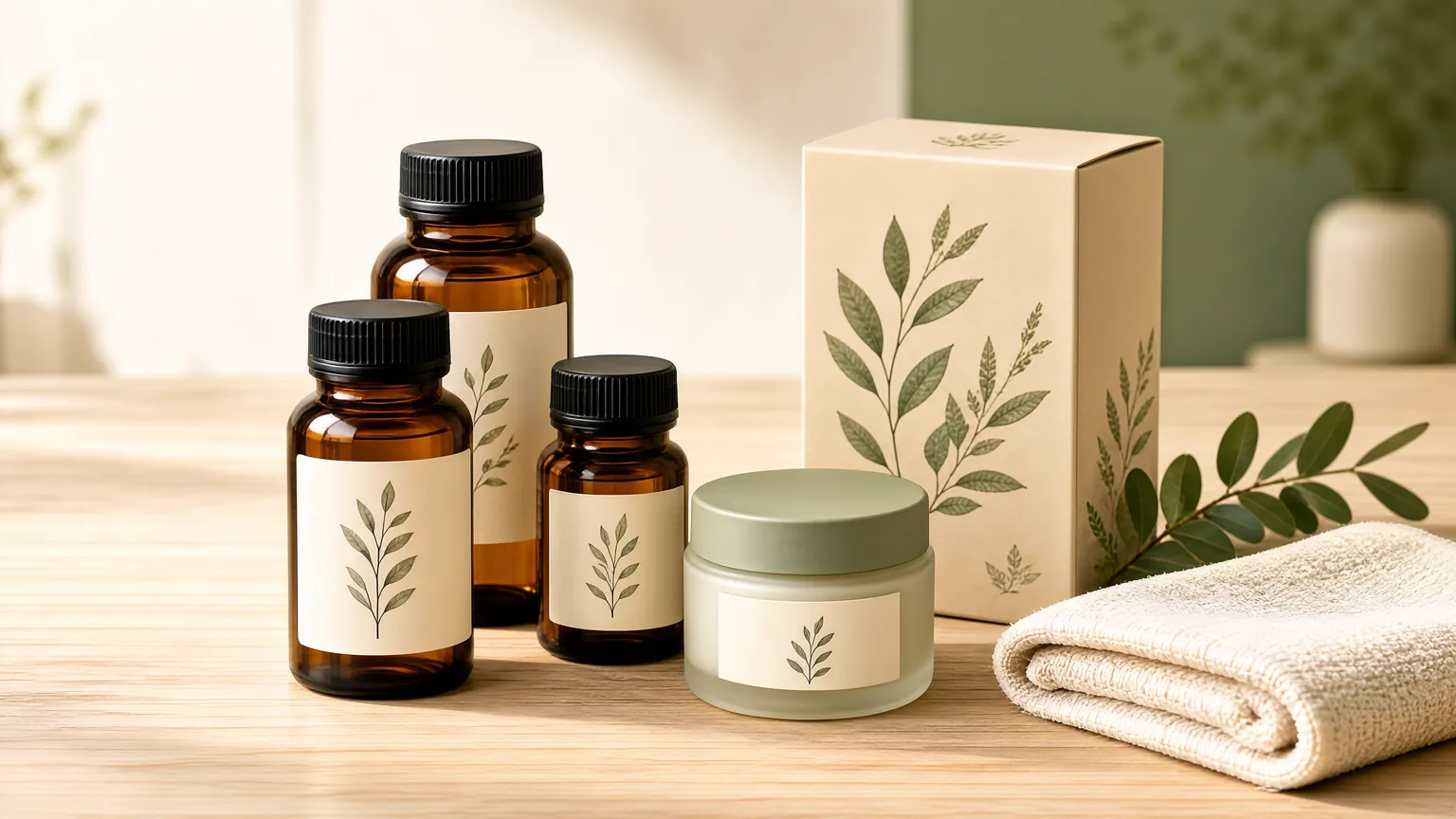
Sense fits stores selling wellness products — supplements, skincare, teas, fitness gear — where trust and clear information matter more than flash. It arranges ingredient lists, benefits, and certifications in tidy blocks, so a cautious buyer can read before they buy. It suits a seller who has real product details to show and not just a pretty bottle.
If your product makes any health claim, the wording has to follow the rules of the country you sell in. In the US, the FDA’s dietary supplement guidance sets out what you can and can’t say on a label or a product page. That’s a legal limit, not a theme feature, and no theme fixes it.
- Lays out ingredient and benefit lists in readable blocks
- Gives space for certifications and sourcing notes
- Keeps a calm, clinical look that suits wellness buyers
- Handles subscription-style product options
A real use: a seller of a magnesium powder lists the ingredient, the amount per scoop, and a short note on who it’s not for. Sense keeps that block tidy on a phone, where most supplement buyers read it.
Taste: for food and drink sellers
Taste is made for food and drink — coffee, spices, sauces, chocolate — and it puts flavor and origin front and center. It suits a seller whose products need a story about where they come from. It’s a narrower theme than Dawn, so skip it if you sell electronics or clothing.
- Highlights origin, roast, or harvest details
- Handles recipe and serving-suggestion blocks
- Gives bundle and sampler packs a clean layout
- Works well with warm, close-up food photos
Taste has a real limit: it needs food photography that makes people hungry. Flat, badly lit shots kill it. If you can’t shoot appetizing photos, use Dawn and let the product names carry the page.
The theme rewards a small catalog more than a large one. Past roughly thirty products, the large image blocks push everything below the fold, and shoppers scroll past the very origin notes the theme was chosen to show. If your range is wider than that, put your best eight to twelve items on the homepage and link the rest.
One example: a coffee roaster sets up a homepage with a photo of the beans, a two-line note on the farm, and three bags listed below — light, medium, dark. A buyer picks a roast and checks out in two taps.
Other free themes worth a look
- Studio — built for creative work like photography, art prints, and design portfolios. It gives images full width and keeps text small, so the work leads. Reach for it if you sell prints or digital art rather than physical stock. If your catalog mixes prints with framed originals, the wide image treatment flatters both, but check that your product photos are at least 2000 pixels on the long edge before you commit.
- Publisher — a content-first theme for blogs, recipes, and news sites that also sell a few products. It puts articles at the top and the shop below. Good if your traffic comes from writing, not from ads. Sites that publish daily and sell occasionally get the most from it; if selling is the main event, the shop sits too far down the page.
- Colorblock — a simple, block-based theme for stores that want a clean grid of products with little setup. It suits a small catalog where every item looks similar. Once you pass a few dozen products, or your items vary a lot in shape and size, the uniform grid starts to work against you.
- Ride — aimed at bike, outdoor, and gear shops, with spec tables and comparison blocks. Pick it if your products need technical details beside the photo. Shops selling soft goods alone will find the spec tables empty weight.
How to choose between them
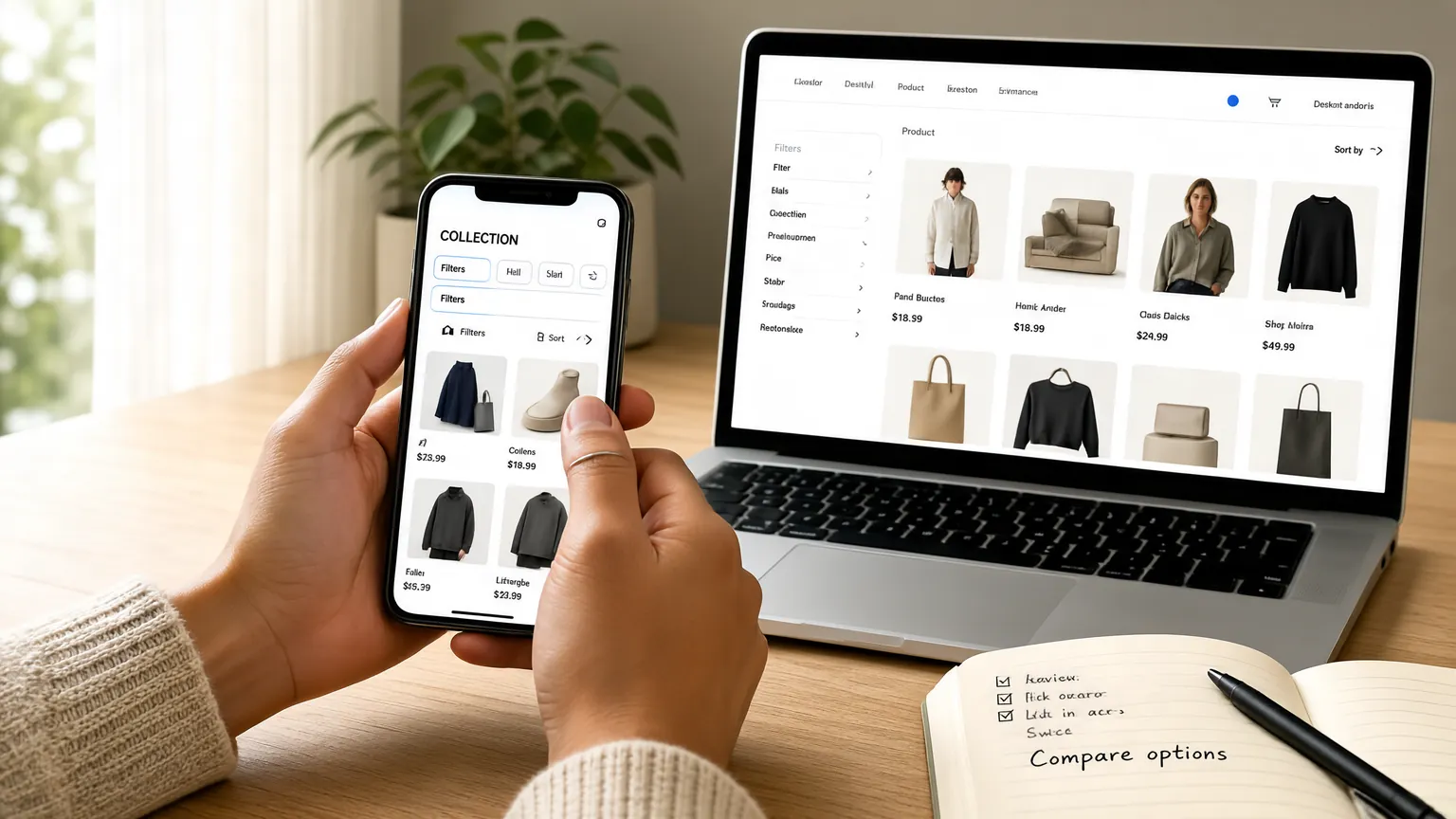
Your product count settles the first choice. Under 50 products, Dawn keeps things simple and fast. Over 100 products, you want a theme with strong collection filters, and Dawn handles that well once you switch the filters on.
Your photos settle the second choice. If you have bright, professional shots, Refresh or Taste will use them. If your photos are plain but honest, Craft or Dawn is safer. A theme can’t rescue weak images, and picking a loud theme makes that worse.
Your goal settles the third. Selling a story or a process points to Craft or Taste. Selling trust and details points to Sense. Selling content that leads to sales points to Publisher.
You can switch themes later without losing products, orders, or customer data — Shopify keeps those separate from the theme. What you do lose is any custom code you added, so keep a copy of it before you switch. Picking one theme doesn’t lock out the others, but running two at once isn’t possible on one store. Start with one, and change it only when a real problem shows up.
Related guides
Related guides
- Best Email Marketing for Shopify Stores
- Best Dropshipping Apps for Shopify
- Best Fulfillment Services for Shopify
Frequently asked questions
Are free Shopify themes good enough for a real store?
Yes, for most new stores. Shopify’s free themes are built by Shopify, updated for speed and mobile, and used by a large share of its merchants. A free theme handles products, checkout, filters, and payments without extra cost. What you pay for in a premium theme is usually extra layout options and support, not basic function. Start free, and upgrade only when you hit a limit you can name.
How long does it take to set up a free Shopify theme?
About 1 to 3 hours for a basic store with 10 products, assuming your photos and text are ready. Installing the theme takes under a minute from your admin. The time goes into uploading images, writing product titles and descriptions, and setting your homepage sections. If you’re starting from zero photos, add a full day for shooting and editing before the store looks ready.
Can I switch themes later without losing my products?
Yes. Products, orders, customers, and payments live outside the theme, so switching doesn’t touch them. What you lose is custom code you added to the old theme, plus any section settings you built by hand. Copy that code somewhere safe first. Then install the new theme, preview it, and publish when it looks right. You can preview a new theme while your old one stays live.
Why does my free theme look different from the demo?
Because the demo uses professional photos, custom fonts, and content written for it. The theme is the same; the inputs aren’t. Your store looks different until you add your own images, colors, and text. That’s normal, and it’s not a fault in the theme. Load your best photos first, then adjust colors to match your brand. Most of the gap closes in an afternoon.
Is it safe to use a free theme from a third-party site?
No, not from an unknown site. A theme from outside Shopify’s official theme store can carry hidden code that slows your store or leaks customer data. Only install themes from your Shopify admin, which pulls from Shopify’s own verified list. If a site offers a “free premium theme” as a download, treat it as unsafe and skip it. The risk isn’t worth the saved cost.
What happens if I pick the wrong free theme?
Nothing permanent. You can switch to another free theme at any time, and your products and orders stay put. You’ll redo your homepage sections and colors, which takes about an hour. So the choice isn’t final, and you don’t need to research for days. Pick the one that fits your products and photos now, and change it if a real problem appears.
Does the theme affect my store’s speed?
Yes, but your images matter more. A heavy theme with compressed images can beat a light theme with huge ones. Keep product photos under about 200 KB each and check the file size in your admin’s file list. Dawn is the lightest of the free options, and it’s the safest pick if speed is your main worry. Test your store on a phone before you go live.
Do free themes work with apps and custom code?
Yes. Free themes from Shopify’s list support apps and allow custom code edits. Some apps need a small code snippet added to your theme, and the app’s own instructions tell you where. Keep a backup of your theme before editing code, so you can restore it if something breaks. If you’re not comfortable editing code, ask the app’s support team to help.
What to do next
Install Dawn from your Shopify admin today and add your first 10 products with real photos. You should see a working store you can preview on your phone within an hour, and the sign it’s working is a product page that loads fast and a checkout that completes.
Before you touch a single line of code, download a copy of your theme. In your admin, go to Online Store, Themes, then the three dots next to your live theme and pick Download theme file. Keep that zip somewhere you can find it in a hurry. It takes about a minute and it’s the only undo button that always works.
If your theme starts throwing errors, breaking your layout, or slowing the store after a code edit, stop and restore your backup or contact Shopify support — that’s the point where a do-it-yourself fix costs more than it saves.
One more thing worth doing in that first hour: place a real test order on your own store, using a real card, then refund it. A preview can look perfect while checkout quietly fails, and you would rather learn that from yourself than from your first customer.
